Kubernetes · Chapter 2
Kubernetes Resources
Pods, ReplicaSets and Deployments, how they are updated and rolled back, the declarative approach with kubectl apply and organizing with Namespaces.
In the previous chapter we saw the cluster architecture. Now it is time for what gets deployed on it: Kubernetes resources (or objects). We will go through the chain you will use every day, Pod → ReplicaSet → Deployment, how to update an application without downtime and how to organize everything with Namespaces.
Pods: the smallest unit
Kubernetes does not run loose containers: it wraps them in a Pod, the smallest unit that can be created and scheduled on a node.
- The norm is one container per Pod. To scale, you create more Pods, not more containers inside the same Pod.
- A Pod can hold several containers when they work together inseparably. For example, a
sidecar that collects logs or a service mesh proxy. Those containers share the network
(they see each other on
localhost) and storage.
Defining a Pod in YAML
Every Kubernetes object is described with four top-level fields:
| Field | What it is for |
|---|---|
apiVersion |
API version of the object (v1 for Pods). |
kind |
Object type: Pod, ReplicaSet, Deployment... |
metadata |
Name, labels and other data about the object. |
spec |
The desired state: for a Pod, its containers. |
apiVersion: v1
kind: Pod
metadata:
  name: mi-pod
  labels:
    app: miapp
    tier: front-end
spec:
  containers:
    - name: web
      image: nginx
      ports:
        - containerPort: 80
Basic commands
# Create a Pod quickly, without YAML (the image must exist in the registry)
kubectl run nginx --image=nginx

# Create or update from the file
kubectl apply -f mi-pod.yaml

# Query
kubectl get pods                 # Pods in the current namespace
kubectl get pods -o wide         # with each Pod's IP and node
kubectl get pods -A              # Pods in every namespace
kubectl describe pod nginx       # Pod details and events
ReplicaSets: several copies, always alive
A single Pod is not resilient: if it dies, nobody replaces it. The ReplicaSet is a controller that guarantees there is always a given number of identical Pods running:
- High availability: if a Pod goes down, it creates another.
- Scaling and load distribution: replicas can be spread across several nodes.
Its predecessor was the ReplicationController, now considered legacy. The ReplicaSet does the same and adds a more flexible selector.
Selector and labels: how it knows which Pods to watch
The ReplicaSet does not "remember" the Pods it created: it finds them by their labels. The
selector.matchLabels field says which labels the Pods that belong to it must have, and the
template defines how to create the missing ones.
apiVersion: apps/v1
kind: ReplicaSet
metadata:
  name: miapp-replicaset
  labels:
    app: miapp
spec:
  replicas: 3
  selector:
    matchLabels:
      app: miapp
      tier: front-end
  template:                 # Pod template
    metadata:
      labels:
        app: miapp          # must match the selector
        tier: front-end
    spec:
      containers:
        - name: web
          image: nginx
          ports:
            - containerPort: 80
Two important consequences:
- A ReplicaSet can adopt Pods that already existed if they carry the selector's labels.
- If you manually create a Pod with those same labels and the replica count has already been reached, the ReplicaSet deletes it: it never allows more copies than requested.
Scaling a ReplicaSet
kubectl get replicasets            # or: kubectl get rs
kubectl describe rs miapp-replicaset

# Option 1: change replicas in the YAML and apply it
kubectl replace -f miapp-replicaset.yaml

# Option 2: scale from the command line
kubectl scale rs miapp-replicaset --replicas=6
Watch out:
kubectl scalechanges the object in the cluster, not your YAML file. If you apply the file afterwards, you will go back to the replica count the file says.
Deployments: the usual way to deploy
In practice you almost never create ReplicaSets by hand. You use a Deployment, a higher-level object that creates and manages ReplicaSets for you and adds what a ReplicaSet cannot do: update the application in a controlled way and roll back.
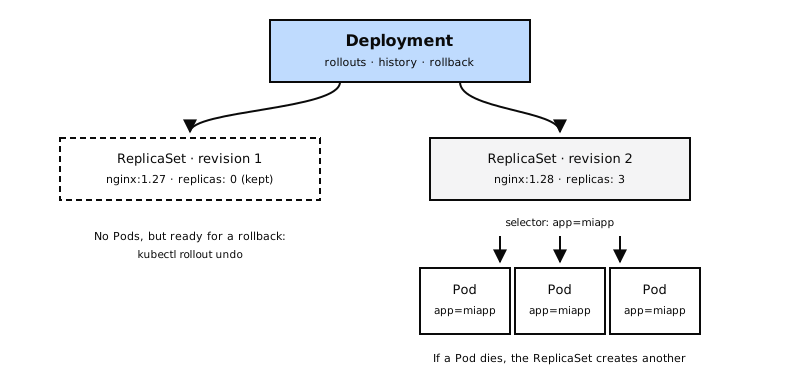
Its YAML is almost identical to the ReplicaSet's; only the kind changes:
apiVersion: apps/v1
kind: Deployment
metadata:
  name: miapp-deployment
  labels:
    app: miapp
spec:
  replicas: 3
  selector:
    matchLabels:
      app: miapp
  template:
    metadata:
      labels:
        app: miapp
    spec:
      containers:
        - name: web
          image: nginx:1.27
          ports:
            - containerPort: 80
kubectl apply -f miapp-deployment.yaml
kubectl get deployments
kubectl get rs          # the ReplicaSet the Deployment created
kubectl get pods
kubectl get all         # all of the above at a glance
Rollouts, revisions and rollback
Every time you change a Deployment's Pod template (for example, the image), Kubernetes starts a rollout and saves a revision. Internally, the Deployment creates a new ReplicaSet with the new version and gradually moves Pods from the old ReplicaSet to the new one.
# Follow progress and view the history
kubectl rollout status deployment/miapp-deployment
kubectl rollout history deployment/miapp-deployment

# Update the image without editing the file
kubectl set image deployment/miapp-deployment web=nginx:1.28

# Go back to the previous revision (or a specific one)
kubectl rollout undo deployment/miapp-deployment
kubectl rollout undo deployment/miapp-deployment --to-revision=1
Since the previous ReplicaSet is kept (with zero replicas), rollback is fast: Kubernetes only has to scale it up again.
About
--record: many guides usekubectl apply --recordto save the command in the history. That flag is deprecated. Today you annotate the reason for the change like this:kubectl annotate deployment/miapp-deployment kubernetes.io/change-cause="nginx 1.28"
Deployment strategies
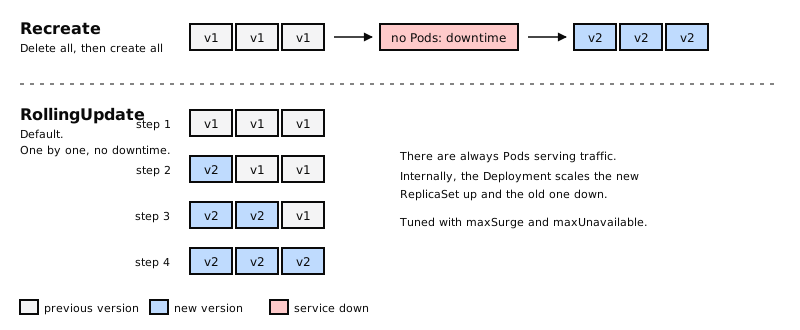
| Strategy | How it works | Downtime? |
|---|---|---|
| RollingUpdate (default) | Replaces Pods gradually: creates a new one, removes an old one, and so on. | No |
| Recreate | Deletes all the old Pods and then creates all the new ones. | Yes, while the new ones start |
It is chosen in the Deployment's spec.strategy.type.
Imperative vs. declarative
There are two ways to work with Kubernetes:
- Imperative: you tell the system what to do and how, step by step: create this, change that, delete the other.
- Declarative: you describe the final state in files and the system works out which changes are needed to get there.
| Imperative | Declarative |
|---|---|
kubectl run, kubectl create, kubectl expose |
kubectl apply -f file.yaml |
kubectl scale, kubectl set image |
kubectl apply -f folder/ |
kubectl edit (changes the cluster, not your file) |
The file is the source of truth |
kubectl replace --force -f (deletes and recreates) |
It can be versioned in Git |
Imperative is handy for quick tests and in timed exams. For real environments, declarative is the recommended approach: the file in Git always reflects what is in the cluster.
How kubectl apply works
kubectl apply compares three versions of each object to decide what to change:
- Your local file (what you want).
- The live object in the cluster (what there is).
- The last applied configuration, which Kubernetes stores in JSON as an annotation on the
object, under the key
kubectl.kubernetes.io/last-applied-configuration.
Thanks to the third one, apply knows when you removed a field from your file and must delete it
from the live object, instead of leaving it as it was. If the object does not exist, it simply
creates it.
Namespaces: organizing the cluster
A Namespace is an isolated space inside the cluster, with its own resources, permissions and limits. It is used to separate environments (development, testing, production) or teams.
Kubernetes ships with several out of the box:
| Namespace | What it is used for |
|---|---|
default |
Where resources are created if you do not specify another. |
kube-system |
Kubernetes internal components. Leave it alone. |
kube-public |
Resources readable by all users, even unauthenticated ones. |
kube-node-lease |
Node heartbeats. |
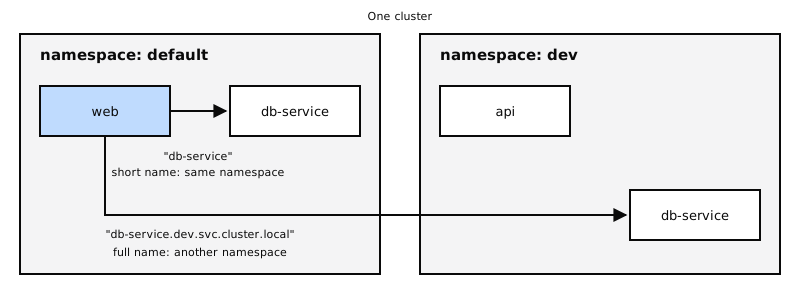
DNS names across namespaces
Within the same namespace, a service is reached by its name (db-service). To reach one in
another namespace you use the full name:
db-service.dev.svc.cluster.local
└─service──┘└ns┘└type┘└─cluster domain─┘
Working with namespaces
# Create
kubectl create namespace dev

# View resources in a specific namespace or in all of them
kubectl get pods --namespace=dev
kubectl get pods --all-namespaces

# Change the default namespace of your context
kubectl config set-context --current --namespace=dev
To always create an object in a namespace, put it in its metadata:
metadata:
  name: mi-pod
  namespace: dev
Limiting resources with ResourceQuota
A ResourceQuota sets the maximum resources a namespace can consume in total:
apiVersion: v1
kind: ResourceQuota
metadata:
  name: cuota-dev
  namespace: dev
spec:
  hard:
    pods: "10"
    requests.cpu: "4"
    requests.memory: 5Gi
    limits.cpu: "10"
    limits.memory: 10Gi
Key takeaways
- The Pod is the smallest unit; it usually holds a single container.
- Every object has
apiVersion,kind,metadataandspec. - The ReplicaSet keeps N copies of a Pod and finds them by labels with its
selector. - The Deployment manages ReplicaSets and adds rollouts, history and rollback.
- RollingUpdate (default) causes no downtime; Recreate does.
- Declarative (
kubectl apply) is recommended;applyuses thelast-applied-configurationannotation to compute changes. - Namespaces separate resources; across them you use the DNS name
service.namespace.svc.cluster.local, and a ResourceQuota limits their consumption.
In the next chapter: scheduling, how Kubernetes decides which node each Pod goes to.