Linux · Chapter 3
Linux Essentials: Finding Your Way on a Linux System
First steps in the shell: command syntax, quoting and variables, PATH, getting help, paths, files and wildcards.
This chapter covers topic 2 of the Linux Essentials exam: moving around a Linux system from the command line. This is where theory turns into practice, so open a terminal and try each command as you go.
The shell
The shell or command interpreter is the program that receives the commands you type on the keyboard and passes them to the operating system. It is also called the terminal or the command line, although strictly speaking the terminal is the window and the shell is the program running inside it.
| Shell | Features |
|---|---|
| Bash | The most widespread; the default shell on most distributions. It is the one the exam uses. |
| sh | The classic Unix shell; the basis of the POSIX standard. |
| zsh | Bash-compatible and highly configurable; the default shell on macOS. |
| csh / tcsh | Syntax similar to the C language. |
| fish | Designed to be friendly, with automatic suggestions. |
echo $SHELL        # which shell your user runs
clear              # clear the screen (or Ctrl + L)
pwd                # print working directory: where you are
Anatomy of a command
A command has three parts: the command, its options (they change how it behaves and usually
start with - or --) and its arguments (what it acts on).
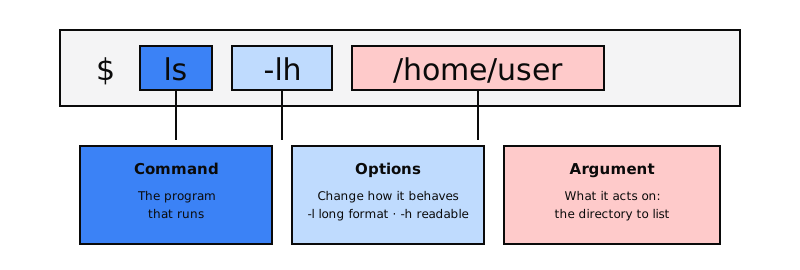
ls                 # command alone
ls -l              # command + option
ls -l /home        # command + option + argument
ls -la /home       # several short options together: -l and -a
ls --all /home     # long option
In GNU commands the order of options and arguments is usually flexible (ls /home -la works too),
but the convention is command, options, arguments.
Printing text: echo and quoting
echo "Hello world"
echo -e "Hello\tworld"     # -e interprets \t (tab)
echo -e "Hello\nworld"     # and \n (new line)
Quotes change how the shell treats text:
| Quotes | Behavior | Example |
|---|---|---|
Double "..." |
Expand variables ($VAR) and commands $(...). |
echo "Your PATH is $PATH" |
Single '...' |
Everything is literal: nothing is expanded. | echo 'Your PATH is $PATH' |
Backslash \ |
Escapes a single character. | echo "It costs \$5" |
echo "Today is $(date +%A)" # command substitution
Finding out what a command is: type, which, uname, whatis
type cd          # cd is a shell builtin   (internal Bash command)
type ls          # may be an alias for ls --color=auto
type cp          # cp is /usr/bin/cp       (external program)

which cp         # path to the executable: /usr/bin/cp

uname            # kernel name: Linux
uname -a         # all the information: version, architecture, host name...
cat /etc/os-release   # distribution name and version
The difference matters: builtin commands are part of the shell itself; external ones are
programs on disk that the shell looks for in the directories listed in PATH.
Variables: set, export, unset and env
greeting="hello"         # local shell variable (no spaces around the =)
echo $greeting

export EDITOR=nano       # environment variable: inherited by the programs you launch
env                      # list environment variables
set                      # list shell variables and functions
unset greeting           # remove the variable

set +o history           # turn off history for this session
set -o history           # turn it back on
The PATH variable
PATH holds the list of directories, separated by :, where the shell looks for external
commands. Thanks to it you type ls instead of /usr/bin/ls.
echo $PATH
# /usr/local/bin:/usr/bin:/bin:...
To run your own scripts from any directory, add their folder to PATH:
mkdir -p ~/scripts
export PATH="$PATH:$HOME/scripts"
That change lasts only until the session ends. To make it permanent, save it in ~/.bashrc
(in zsh, ~/.zshrc) and reload the file:
echo 'export PATH="$PATH:$HOME/scripts"' >> ~/.bashrc
source ~/.bashrc
Use single quotes in the
echo: that way the literal text$PATHis saved and expanded each time a session starts. With double quotes, the full current value would be saved instead.
Your first script and the shebang
The first line of a script, the shebang, tells the system which interpreter should run it:
#!/bin/bash
# ~/scripts/hello.sh
echo "Hello, $USER"
echo "Today is $(date +%Y-%m-%d)"
chmod +x ~/scripts/hello.sh   # make it executable
hello.sh                      # works from anywhere if ~/scripts is in PATH
./hello.sh                    # otherwise, run it by giving its path
Getting help
| Tool | What it is for |
|---|---|
command --help |
Quick summary of options. |
man command |
The full manual. Navigate with the arrows, / searches, q quits. |
info command |
Longer documentation, with links between sections. |
whatis command |
One-line description (same as man -f). |
apropos word |
Searches for the word in manual page descriptions (same as man -k). |
locate file |
Finds files by name using a database updated with updatedb. |
whereis command |
Where a command's binary, source code and manual are. |
/usr/share/doc/ |
Extra documentation for installed packages. |
The manual is divided into sections. The same word can appear in several:
| Section | Contents |
|---|---|
| 1 | User commands |
| 5 | Configuration file formats |
| 8 | System administration commands |
man passwd       # section 1: the passwd command
man 5 passwd     # section 5: the /etc/passwd file
man -f cp        # = whatis cp
man -k copy      # = apropos copy
Directories and paths
The Linux file system is a tree that starts at the root, /. Each user has a home directory,
usually /home/user, which can also be written as ~.
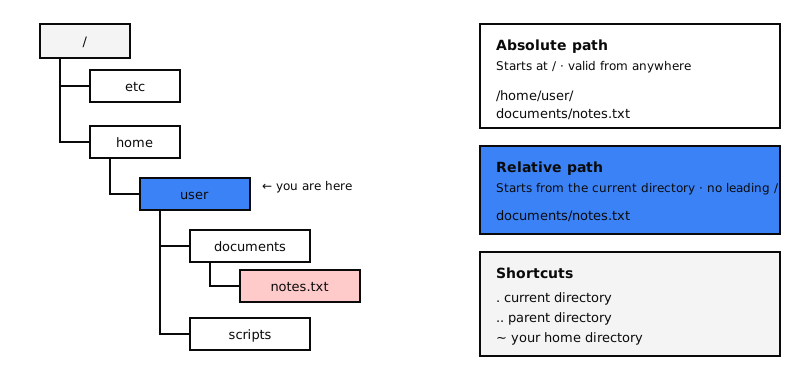
- An absolute path starts at
/and works from anywhere:/home/user/documents/notes.txt - A relative path starts from the directory you are in and does not begin with
/: if you are in/home/user, the same path isdocuments/notes.txt. .is the current directory and..the parent directory.
Moving around with cd
cd               # go to your home directory (same as cd ~)
cd /etc          # absolute path
cd documents     # relative path
cd ..            # go up to the parent directory
cd -             # go back to the previous directory
cd /             # go to the root
Listing with ls
ls -a        # include hidden files (they start with .)
ls -l        # long format: permissions, owner, size, date
ls -lh       # human-readable sizes (K, M, G)
ls -S        # sort by size, largest first
ls -lr       # reverse order
ls -R        # recursive: go into subdirectories
Creating, moving, copying and deleting
touch notes.txt              # create an empty file (or update its timestamp)

mkdir projects               # create a directory
mkdir dir1 dir2 dir3         # several at once
mkdir -p courses/linux/lpi   # also create the intermediate directories
mkdir "my photos"            # name with spaces (or: mkdir my\ photos)

cp notes.txt copy.txt        # copy a file
cp -r projects backup        # copy a whole directory

mv notes.txt projects/       # move
mv copy.txt summary.txt      # rename

rm summary.txt               # delete a file
rmdir dir1                   # delete an empty directory
rm -r backup                 # delete a directory and everything in it
Careful:
rmhas no trash can. What you delete is gone. Add-ito be asked for confirmation.
A difference that shows up in the exam: mv keeps the file's owner and permissions, because it
does not create a new file; cp creates a new file owned by the user who copies it.
And remember: Linux is case-sensitive. Notes.txt and notes.txt are different files.
History
history          # list executed commands, numbered
!123             # repeat command number 123
!!               # repeat the last command
Ctrl + R searches backwards through the history as you type.
Wildcards (globbing)
Wildcards let you refer to several files at once. The shell expands them before running the command.
| Wildcard | Meaning | Example | Matches |
|---|---|---|---|
* |
Any number of characters (even none) | ls *.txt |
notes.txt, a.txt |
? |
Exactly one character | ls photo?.jpg |
photo1.jpg, photoA.jpg |
[abc] |
One of the listed characters | ls report[123].pdf |
report1.pdf, report3.pdf |
[a-z] |
One character in the range | ls [a-c]* |
files starting with a, b or c |
[!abc] |
Any character except those | ls [!0-9]* |
files not starting with a digit |
[[:digit:]] |
A character class (digits, letters...) | ls *[[:digit:]].log |
app1.log, app2.log |
ls *.txt                  # every .txt file
ls ??.conf                # two-character names ending in .conf
cp *.jpg ~/photos/        # copy every .jpg image
rm log-2026-0[1-3]-*.txt  # delete the January to March logs
A tip for building patterns: start with the most distinctive part, which is often at the end of the name (the extension), and add conditions towards the left.
Key takeaways
- The shell (Bash) interprets what you type; the syntax is command, options, arguments.
- Double quotes expand variables; single quotes do not.
typetells builtins from external commands;whichshows an executable's path.PATHsays where to look for commands; for permanent changes, use~/.bashrc.- Help:
--help,man(with sections),info,whatis,apropos,locate. - Absolute paths start at
/; relative ones, at the current directory..,..,~. mvkeeps the owner;cpcreates a new file. Linux is case-sensitive.- Wildcards:
*,?,[...],[!...]and classes such as[[:digit:]].